Docker Compose 란?
Docker Compose(도커 컴포즈)는 여러 개의 컨테이너를 하나의 묶음으로 관리할 수 있도록 도와주는 도구입니다.
컴포즈를 사용하면 YAML 파일을 사용하여 여러 개의 컨테이너 환경의 애플리케이션 서비스를 구성할 수 있고,
컨테이너 간 의존성과 Docker 네트워크 환경까지 설정할 수 있습니다.
특징
- 서비스들을 시작하고 중지하고 재빌드한다.
- 단일 컨테이너가 아닌 복수의 컨테이너를 시작, 중지, 다시 빌드가 가능
- 실행 중인 서비스의 상태를 볼 수 있다.
- 로그 출력을 포함하여 실행 중인 모든 서비스의 상태를 쉽게 확인이 가능
- 실행 중인 서비스의 로그를 스트림할 수 있다.
- 로그를 가져오기 위해 컨테이너 별로 명령을 수행할 필요 없이 모든 컨테이너의 로그를 한 번에 가져올 수 있음
- 하나의 서비스에 일회성 작업을 수행할 수 있다.
- 모든 컨테이너를 묶어서 작업할 필요없이 경우에 따라서 단일 컨테이너에 접근하여 작업 수행이 가능
어떤 환경에서 사용할까?
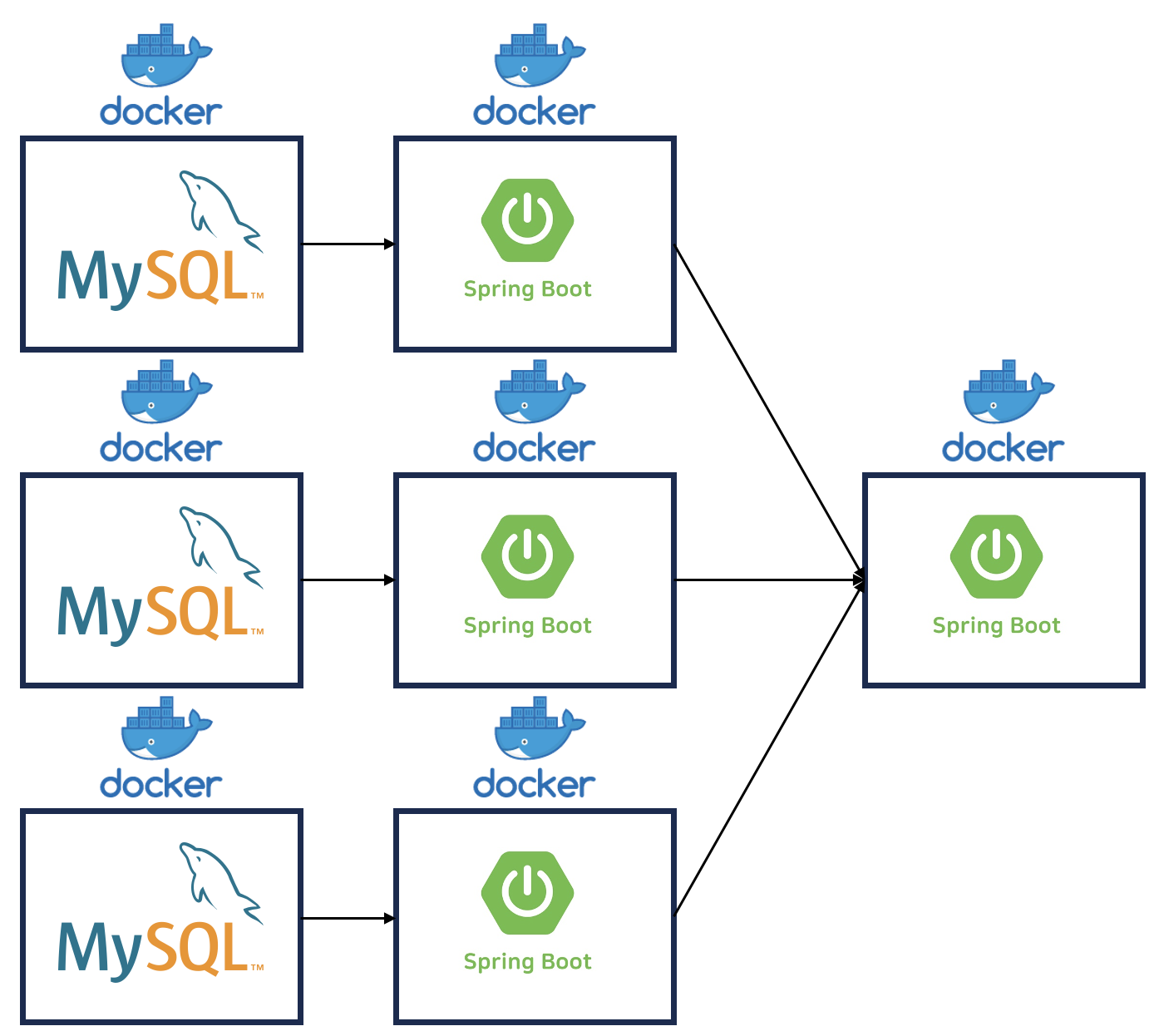
위와 같은 배포 환경을 구축한다고 가정하겠습니다.
마이크로 서비스 구조의 Spring Boot 서비스들은 총 4개이고 각 서비스 별로 데이터베이스가 하나씩 연결되어 있습니다.
만약 컴포즈를 사용하지 않고 단일로 관리하게 된다면,
컨테이너를 각자 따로 관리해야 해서 컨테이너의 수가 늘어날수록 비효율적입니다.
하지만 Docker Compose를 사용한다면 단일 서비스가 아닌 모든 서비스를 묶어서 한번에 관리할 수 있습니다.
위의 배포 환경의 경우 7개의 컨테이너를 하나의 묶음으로 모든 서비스를 관리할 수 있습니다.
또한 컨테이너들의 모든 로그를 한번에 모니터링하고 상태를 관리할 수 있습니다.
환경 구성 파일 (yaml)
여러 개의 컨테이너 설정 내용을 하나의 YAML 파일에 정의하여 사용합니다. 정의된 컴포즈 설정파일을 이용해 한 번의 명령으로 간단하게 다수의 컨테이너 서비스를 실행할 수 있습니다.
기본적인 문법
| 구문 | 설명 |
| build | 해당 컨테이너의 이미지를 빌드하기 위한 Dockerfile의 경로를 지정 |
| ports | 호스트 운영체제의 포트와 바인딩 할 컨테이너의 포트를 지정 |
| image | 베이스 이미지를 지정 |
| command | 해당 컨테이너를 실행할 때 Dockerfile의 CMD를 무시하고 실행할 명령어를 지정 |
| depends_on | 컨테이너 간 종속성 순서대로 컨테이너를 시작(명시된 컨테이너가 먼저 실행되고 해당 컨테이너가 실행되야 한다.) |
| environment | 컨테이너의 환경 변수를 지정 |
| networks | 도커 네트워크 지정 |
| ipv4_address | 도커 네트워크에서 지정된 네트워크 대역대의 고정 IP 주소를 지정 |
| restart | 재시작 설정 조건 지정 - always → exit code 와 상관없이 항상 재시작 - no → 재시작 하지 않음 - on-failure → exit code가 0이 아닐때만 재시작 - unless-stopped → 컨테이너 상태를 수동으로 stop하기 전까지 재시작 |
| conatiner_name | 컨테이너 이름 지정 |
| volumes | 호스트의 저장 공간과 컨테이너 내부의 저장 공간을 바운드 마운팅 |
설정 파일 예시
version: "3"

services:
  mysql:
    container_name: mysql
    image: mysql:8.0.33
    ports:
      - 3306:3306
    restart: always
    environment:
      - MYSQL_ROOT_PASSWORD=password
      - TZ=Asia/Seoul
    command:
      - --character-set-server=utf8mb4
      - --collation-server=utf8mb4_unicode_ci
      - --max_connections=300
    volumes:
      - /data/mysql/var/lib/mysql:/var/lib/mysql
      - /data/mysql/etc/mysql/conf.d:/etc/mysql/conf.d
    networks:
      data-net:
        ipv4_address: 10.0.0.10

  api:
    container_name: api
    environment:
      - TZ=Asia/Seoul
    build: ./
    ports:
      - 8080:8080
    networks:
      data-net:
        ipv4_address: 10.0.0.30

networks:
  data-net:
    name: data-net
    driver: bridge
    ipam:
      config:
        - subnet: 10.0.0.0/24
          gateway: 10.0.0.1
환경 구축 해보기
도커 설치
[Docker] Ubuntu 20.04에 Docker 설치하기
서버 환경CPU: 1coreRAM :1GBOS: Ubuntu Server 20.04.3 LTS서버 환경은 위와 같습니다. AWS 의 프리티어 EC2 를 활용하여 설치를 진행했습니다. 본 게시물에는 설명하지 않았지만, 충분한 메모리가 없는 인스턴
tablemin-park.tistory.com
Docker Compose 를 사용하기 위해서는 사전에 Docker 설치가 필요합니다.
Docker Compose 환경 파일 작성
version: "3"

services:
  mysql:
    container_name: mysql
    image: mysql:8.0.33
    ports:
      - 3306:3306
    restart: always
    environment:
      - MYSQL_ROOT_PASSWORD=password
      - TZ=Asia/Seoul
    command:
      - --character-set-server=utf8mb4
      - --collation-server=utf8mb4_unicode_ci
      - --max_connections=300
    volumes:
      - /data/mysql/var/lib/mysql:/var/lib/mysql
      - /data/mysql/etc/mysql/conf.d:/etc/mysql/conf.d
    networks:
      data-net:
        ipv4_address: 10.0.0.10

  api:
    container_name: api
    environment:
      - TZ=Asia/Seoul
    build: ./
    ports:
      - 8080:8080
    networks:
      data-net:
        ipv4_address: 10.0.0.30

networks:
  data-net:
    name: data-net
    driver: bridge
    ipam:
      config:
        - subnet: 10.0.0.0/24
          gateway: 10.0.0.1
Docker Compose 실행
sudo docker compose up -d

# 실행 결과
[+] Running 3/3
 ✔ Network data-net  Created          0.1s
 ✔ Container api     Started          1.5s
 ✔ Container mysql   Started          1.5s
"docker compose up" 을 통해 컨테이너들을 한번에 실행합니다.
-d 옵션은 백그라운드로 실행하기 위한 옵션입니다.
컨테이너 상태 확인
sudo docker compose ps

# 실행 결과
NAME                IMAGE                               COMMAND                  SERVICE             CREATED             STATUS              PORTS
api                 wanted-pre-onboarding-backend-api   "java -jar /app.jar"     api                 5 minutes ago       Up 5 minutes        0.0.0.0:8080->8080/tcp, :::8080->8080/tcp
mysql               mysql:8.0.33                        "docker-entrypoint.s…"   mysql               5 minutes ago       Up 5 minutes        0.0.0.0:3306->3306/tcp, :::3306->3306/tcp, 33060/tcp
"docker compose ps" 로 현재 구동중인 서비스들의 상태를 간략하게 확인할 수 있습니다.
컴포즈 서비스 로그 확인
sudo docker compose logs

# 실행 결과
mysql  | 2023-08-26 04:34:56+09:00 [Note] [Entrypoint]: Entrypoint script for MySQL Server 8.0.33-1.el8 started.
mysql  | 2023-08-26 04:34:57+09:00 [Note] [Entrypoint]: Switching to dedicated user 'mysql'
mysql  | 2023-08-26 04:34:57+09:00 [Note] [Entrypoint]: Entrypoint script for MySQL Server 8.0.33-1.el8 started.
mysql  | '/var/lib/mysql/mysql.sock' -> '/var/run/mysqld/mysqld.sock'
mysql  | 2023-08-25T19:34:58.546971Z 0 [Warning] [MY-011068] [Server] The syntax '--skip-host-cache' is deprecated and will be removed in a future release. Please use SET GLOBAL host_cache_size=0 instead.
mysql  | 2023-08-25T19:34:58.553089Z 0 [System] [MY-010116] [Server] /usr/sbin/mysqld (mysqld 8.0.33) starting as process 1
mysql  | 2023-08-25T19:34:58.569895Z 1 [System] [MY-013576] [InnoDB] InnoDB initialization has started.
mysql  | 2023-08-25T19:34:59.240261Z 1 [System] [MY-013577] [InnoDB] InnoDB initialization has ended.
mysql  | 2023-08-25T19:34:59.838832Z 0 [Warning] [MY-010068] [Server] CA certificate ca.pem is self signed.
mysql  | 2023-08-25T19:34:59.839055Z 0 [System] [MY-013602] [Server] Channel mysql_main configured to support TLS. Encrypted connections are now supported for this channel.
mysql  | 2023-08-25T19:34:59.845804Z 0 [Warning] [MY-011810] [Server] Insecure configuration for --pid-file: Location '/var/run/mysqld' in the path is accessible to all OS users. Consider choosing a different directory.
mysql  | 2023-08-25T19:34:59.927952Z 0 [System] [MY-011323] [Server] X Plugin ready for connections. Bind-address: '::' port: 33060, socket: /var/run/mysqld/mysqlx.sock
mysql  | 2023-08-25T19:34:59.928806Z 0 [System] [MY-010931] [Server] /usr/sbin/mysqld: ready for connections. Version: '8.0.33'  socket: '/var/run/mysqld/mysqld.sock'  port: 3306  MySQL Community Server - GPL.
api    |
api    |
api    |   .   ____          _            __ _ _
api    |  /\\ / ___'_ __ _ _(_)_ __  __ _ \ \ \ \
api    | ( ( )\___ | '_ | '_| | '_ \/ _` | \ \ \ \
api    |  \\/  ___)| |_)| | | | | || (_| |  ) ) ) )
api    |   '  |____| .__|_| |_|_| |_\__, | / / / /
api    |  =========|_|==============|___/=/_/_/_/
api    |  :: Spring Boot ::               (v2.7.10)
api    |
api    |
api    | 2023-08-26 04:35:01.407  INFO 1 --- [           main] com.wanted.WantedApplication             : Starting WantedApplication using Java 11.0.16 on 2d1957440ccc with PID 1 (/app.jar started by root in /)
api    | 2023-08-26 04:35:01.414  INFO 1 --- [           main] com.wanted.WantedApplication             : No active profile set, falling back to 1 default profile: "default"
api    | 2023-08-26 04:35:03.718  INFO 1 --- [           main] .s.d.r.c.RepositoryConfigurationDelegate : Multiple Spring Data modules found, entering strict repository configuration mode
api    | 2023-08-26 04:35:03.727  INFO 1 --- [           main] .s.d.r.c.RepositoryConfigurationDelegate : Bootstrapping Spring Data JPA repositories in DEFAULT mode.
api    | 2023-08-26 04:35:04.302  INFO 1 --- [           main] .s.d.r.c.RepositoryConfigurationDelegate : Finished Spring Data repository scanning in 545 ms. Found 2 JPA repository interfaces.
api    | 2023-08-26 04:35:04.354  INFO 1 --- [           main] .s.d.r.c.RepositoryConfigurationDelegate : Multiple Spring Data modules found, entering strict repository configuration mode
api    | 2023-08-26 04:35:04.359  INFO 1 --- [           main] .s.d.r.c.RepositoryConfigurationDelegate : Bootstrapping Spring Data Redis repositories in DEFAULT mode.
api    | 2023-08-26 04:35:04.416  INFO 1 --- [           main] .RepositoryConfigurationExtensionSupport : Spring Data Redis - Could not safely identify store assignment for repository candidate interface com.wanted.auth.repository.MemberRepository; If you want this repository to be a Redis repository, consider annotating your entities with one of these annotations: org.springframework.data.redis.core.RedisHash (preferred), or consider extending one of the following types with your repository: org.springframework.data.keyvalue.repository.KeyValueRepository

...
"docker compose logs" 를 이용해 모든 컨테이너의 로그를 하나의 콘솔에서 확인할 수 있습니다.
다수의 서비스가 동시에 구동될 때는 비효율적이지만, 여러 컨테이너의 로그를 한번에 확인해야 하는 상황에서는 유용할 것 같습니다.
Docker Compose 중지
sudo docker compose stop mysql

# 실행 결과
[+] Stopping 1/1
 ✔ Container mysql  Stopped          5.0s
"docker compose stop [컨테이너명]" 을 통해 특정 컨테이너만 중지할 수 있습니다.
Docker Compose 시작
sudo docker compose start mysql

# 실행 결과
[+] Running 1/1
 ✔ Container mysql  Started          1.0s
Docker Compose 중지와 반대로 "docker compsoe start [컨테이너명]" 을 통해 특정 컨테이너만 시작할 수 있습니다.
Docker Compose 일시중지
sudo docker compose pause mysql

# 실행 결과
[+] Pausing 1/0
 ✔ Container mysql  Paused          0.0s
Docker Compose 일시 중지 해제
sudo docker compose unpause mysql

# 실행 결과
[+] Running 1/0
 ✔ Container mysql  Unpaused          0.0s
Docker Compose 재시작
sudo docker compose restart mysql

# 실행 결과
[+] Restarting 1/1
 ✔ Container mysql  Started          3.4s
Docker Compose 컨테이너 중지 및 삭제
sudo docker compose stop api

# api 컨테이너 실행 중지
[+] Stopping 1/1
 ✔ Container api  Stopped          2.2s
컨테이너를 삭제하기 위해서는 먼저 해당 컨테이너를 중지해야 합니다.
sudo docker compose rm api

# 실행 결과
? Going to remove api Yes
[+] Removing 1/0
 ✔ Container api  Removed          0.0s
이후 "docker compose rm [컨테이너명]" 으로 컨테이너를 삭제합니다.
sudo docker compose ps

# 컨테이너 프로세스 확인
NAME                IMAGE               COMMAND                  SERVICE             CREATED             STATUS              PORTS
mysql               mysql:8.0.33        "docker-entrypoint.s…"   mysql               16 minutes ago      Up About a minute   0.0.0.0:3306->3306/tcp, :::3306->3306/tcp, 33060/tcp
컴포즈 서비스 프로세스를 확인했을 때 api 컨테이너가 삭제된 것을 볼 수 있습니다.
Docker Compose 전체 중지
sudo docker compose down

# 실행 결과
[+] Running 3/3
 ✔ Container api     Removed          0.7s
 ✔ Container mysql   Removed          1.6s
 ✔ Network data-net  Removed          0.1s
"docker compose down" 을 통해 모든 컨테이너를 중지 후 삭제할 수 있습니다.
단순히 컨테이너를 중지하는 것과 구성했었던 네트워크 및 Docker Compose 관련 설정들이 모두 삭제되는 점이 다릅니다.
'데브옵스 > docker' 카테고리의 다른 글
| [Docker] Ubuntu 20.04에 Docker 설치하기 (0) | 2023.08.25 |
|---|---|
| [Docker] Docker란? (0) | 2023.08.25 |